First steps
First steps - How to use Matrix?
Matrix-Login with KIT account
Members and members of the KIT (of course also students) can use their KIT login to communicate with members of the KIT and other universities and other Matrix users (e.g. academic partners) via chat and audio/video telephony in compliance with the relevant legal and regulatory provisions on data protection and IT security.
Tip
We recommend using a desktop / mobile client or the Element web client provided by SCC.
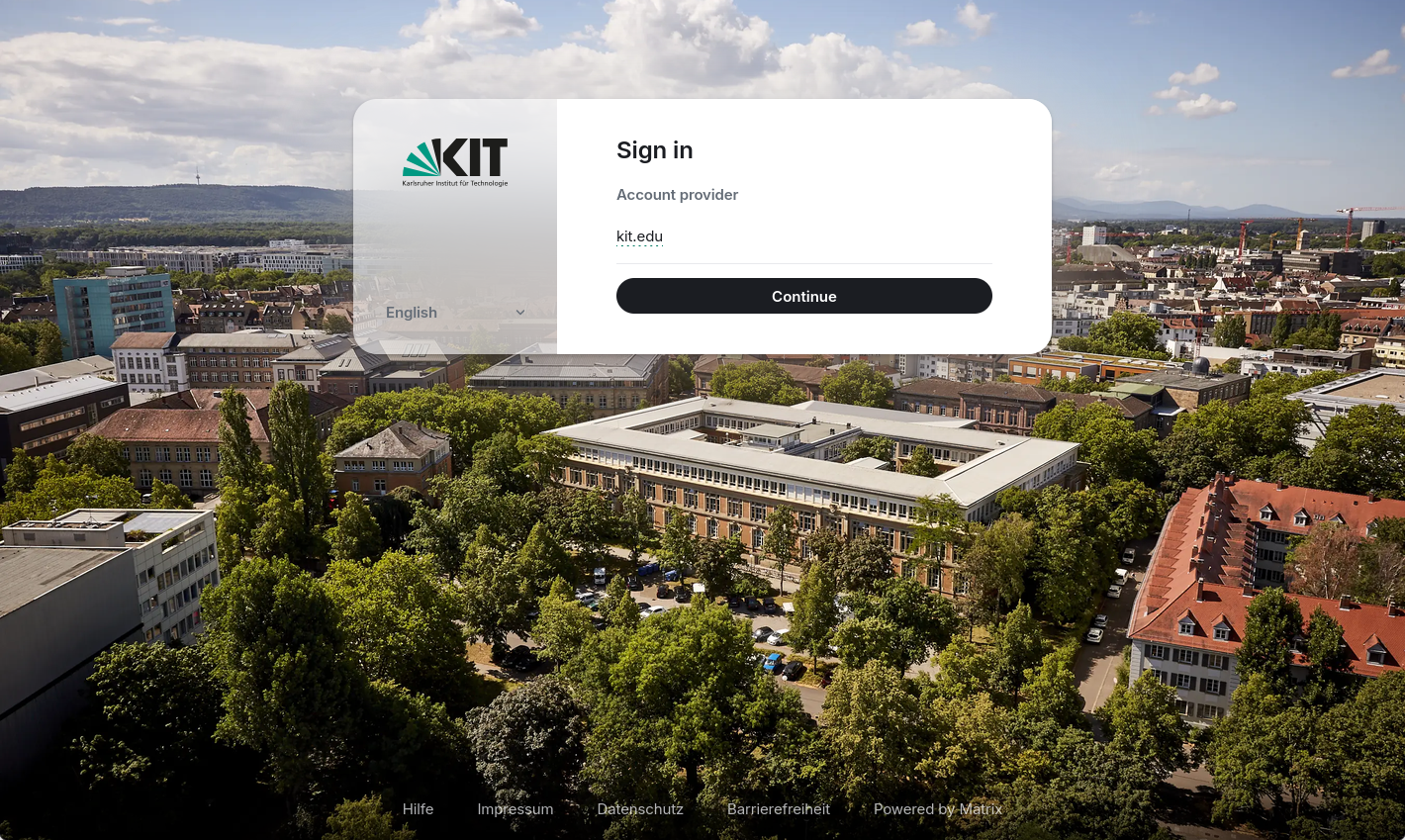
Start here element.matrix.kit.edu by clicking “Continue”.
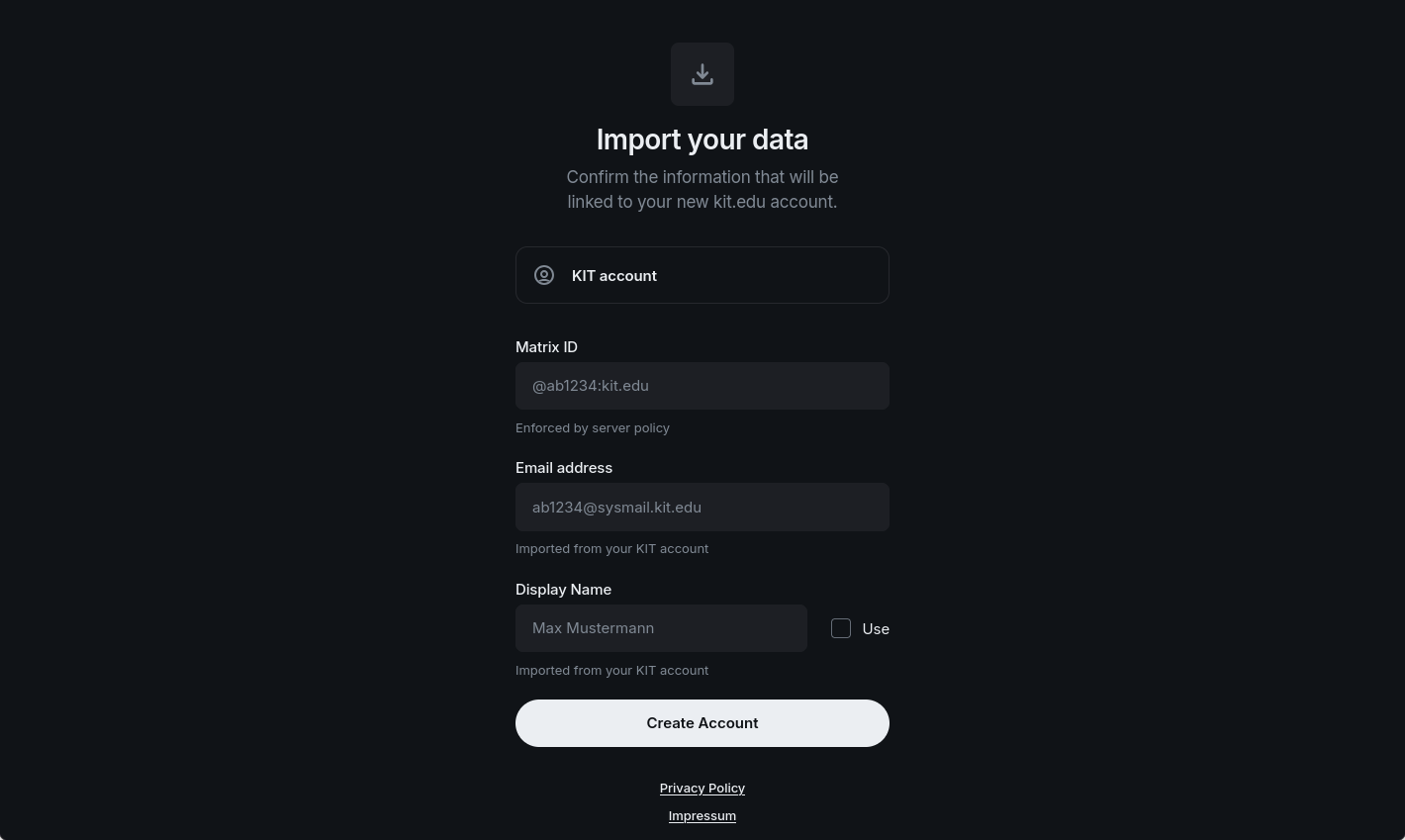
After logging in with your KIT account and accepting the privacy policy, you will be taken to the Matrix registration page. Here you can see which data will be imported into your Matrix account. If you would like your display name to be imported, click “Use”. You can also change your display name later.
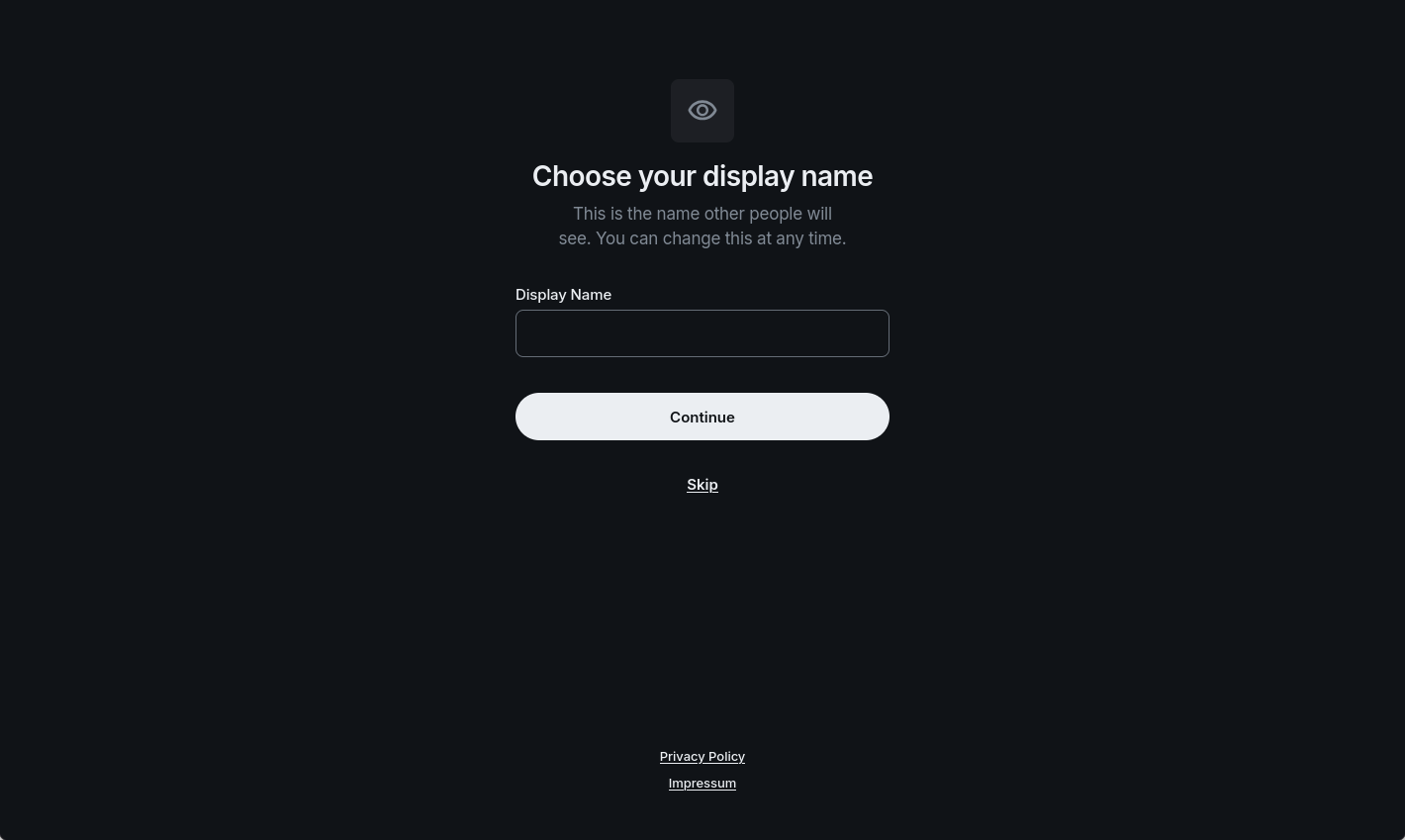
If you don’t click “Use”, you can choose your own display name in the next step.
Please confirm the login to Element Web now.
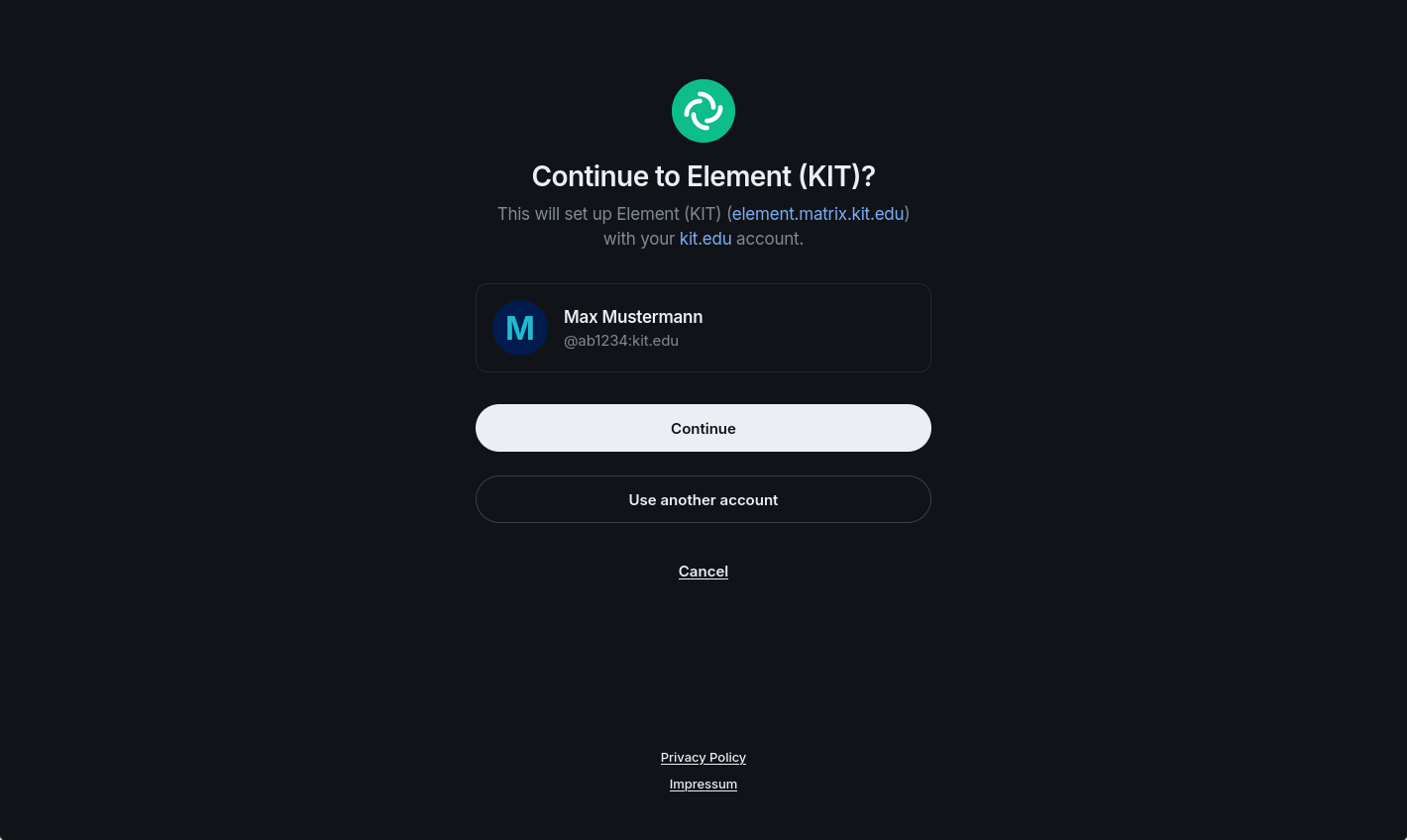
The matrix addresses have the following structure:
For students: @uxxxx:kit.edu
For employees/partners: @ab1234:kit.edu
Convenient use of end-to-end encryption (E2EE)
Matrix not only encrypts transports to and from the home server (in the data center of KIT) but also allows the use of end-to-end encryption (E2EE). For this, cryptographic keys have to be exchanged between all devices that want to write end-to-end encrypted. This technical necessity sounds and is complicated, but in the meantime it has become very convenient for the users. The many cryptographic keys created by the client are stored on the respective device. If this is a tab in a browser, for example, there is a risk that this tab will be closed unintentionally. Then all encrypted contents are no longer readable. To prevent this from happening, a key protection is offered on the home server of the KIT, on which (protected with a security key) all cryptographic keys are stored encrypted.
Info
It is highly recommended to use this key backup!
After your first login to your Matrix account, you will be prompted at the top left to create a recovery key. Click “Continue” in the notification, or alternatively open the settings and then “Encryption”.
In the section “Backup” click “Get recovery key”.
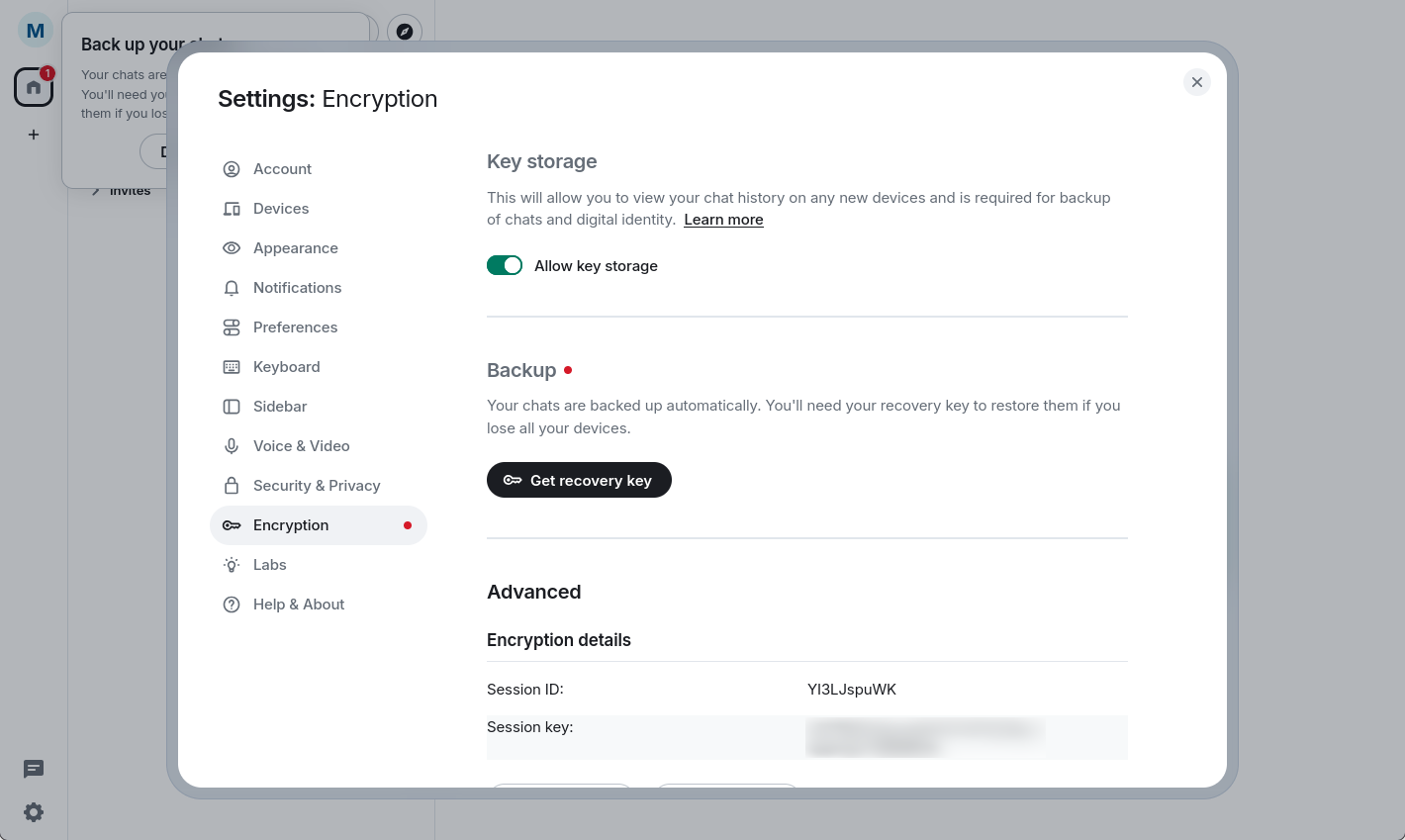
Click “Continue” and store the displayed recovery key in a safe place. It will only be shown once.
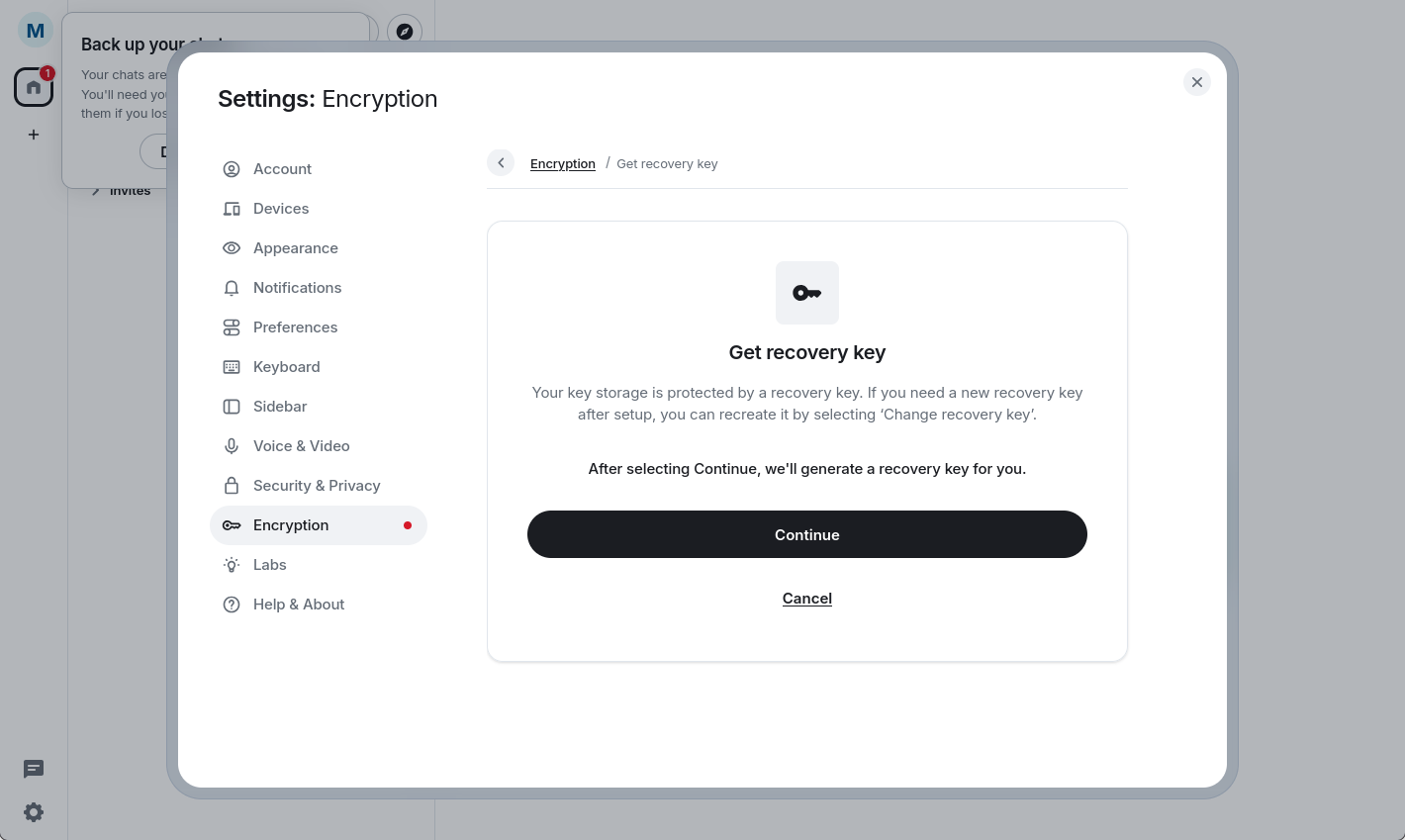
Now enter the recovery key that you saved.
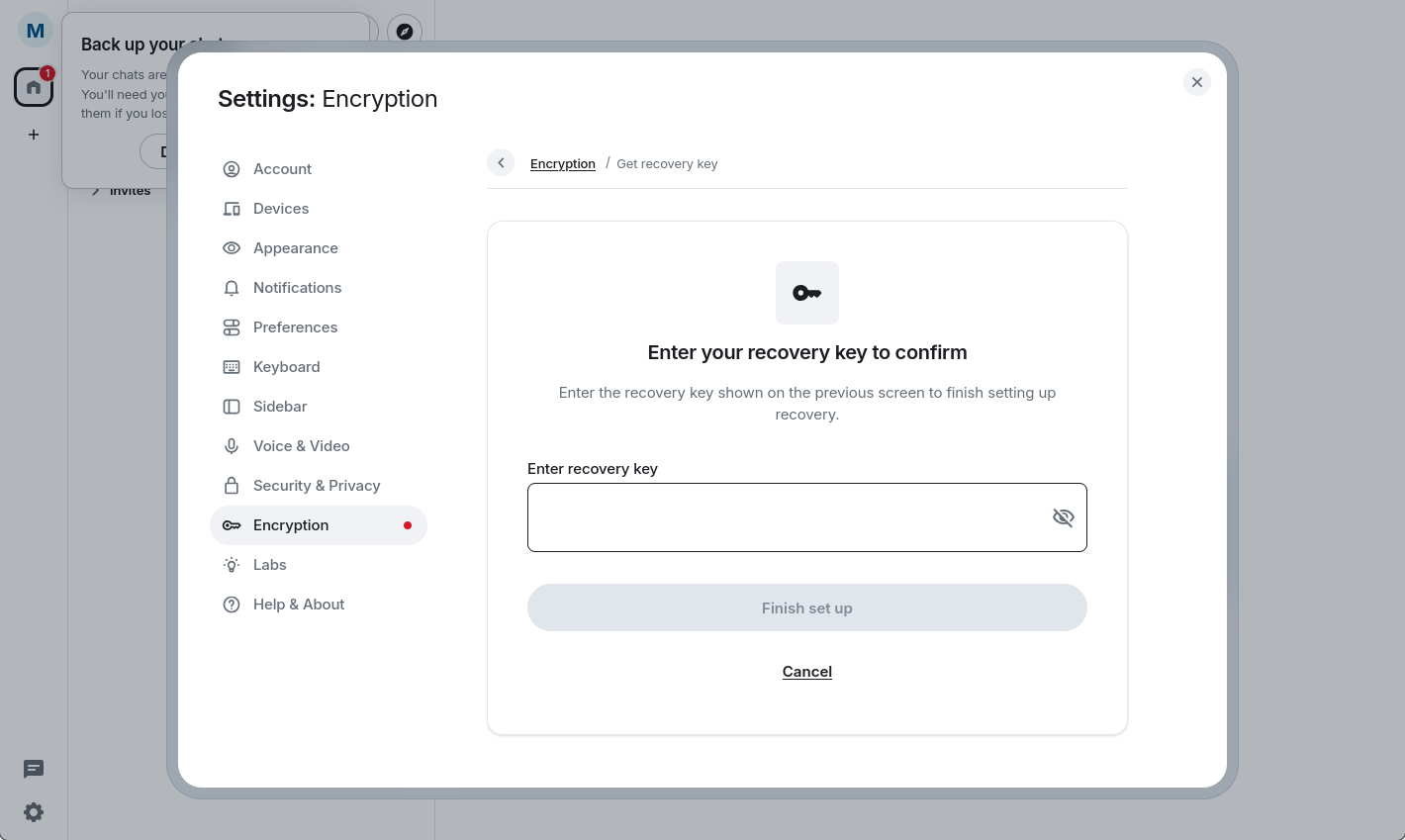
With the recovery key, you can restore the encrypted messages in your Matrix account.
Other important settings may improve your Matrix experience!
Verify New Devices
If you want to log in on additional devices, you must verify them. There are two ways to do this. You can either verify the new device with an already logged in device or with your security key.
Follow the dialog that guides you through the steps to verify.
If you have any questions, please feel free to contact us in the #helpdesk:kit.edu room.